Keyspoken / How to dictate on iPhone
How to dictate on iPhone
How to dictate text messages, email and notes on iPhone with built-in dictation and with Keyspoken, plus voice commands and fixes when it stops working.
With the iPhone's built-in dictation
- Open Settings, General, Keyboard and turn on Enable Dictation.
- In any app, tap a text field so the keyboard appears.
- Tap the microphone key on the keyboard and speak.
- Tap the microphone again, or the keyboard, to stop.
With Keyspoken
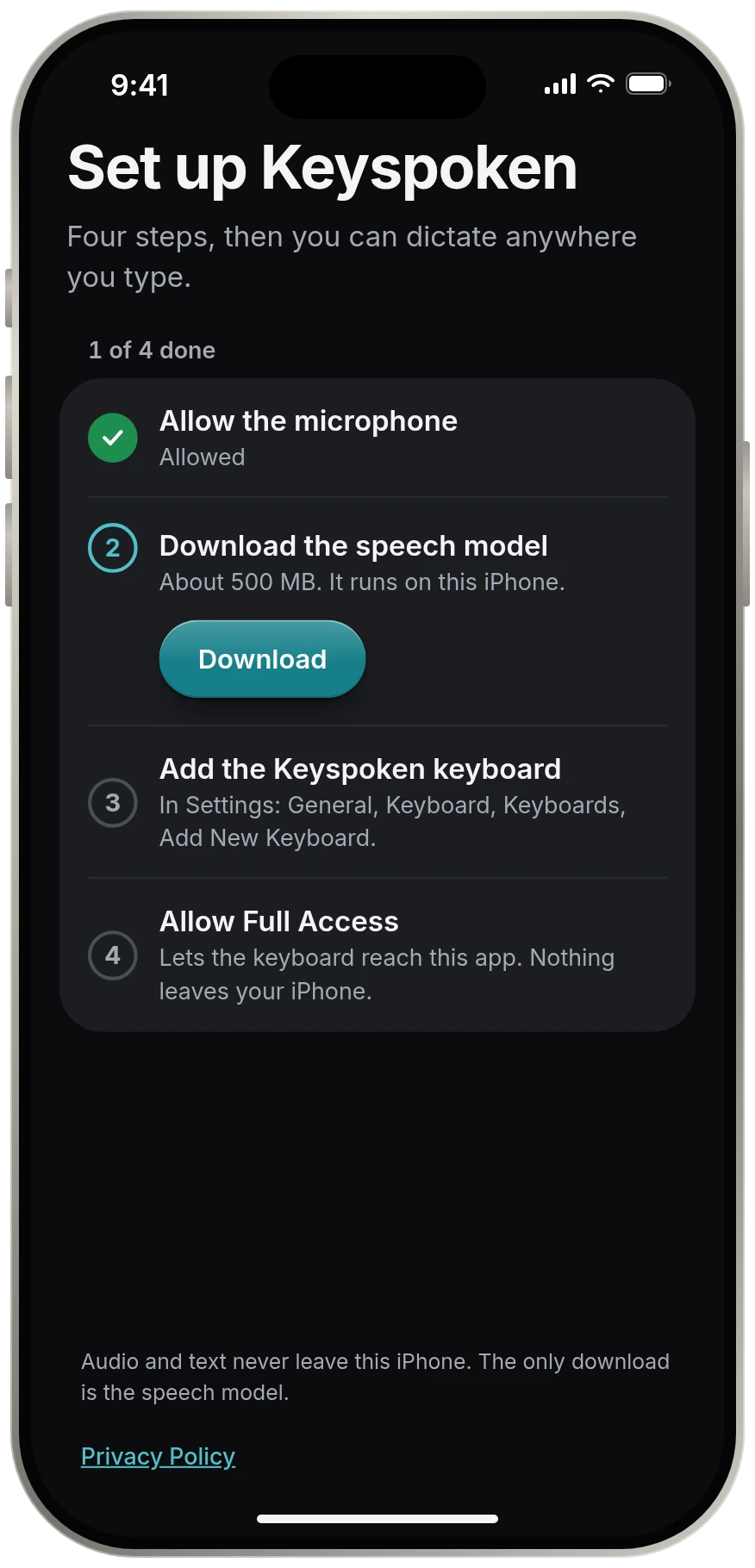
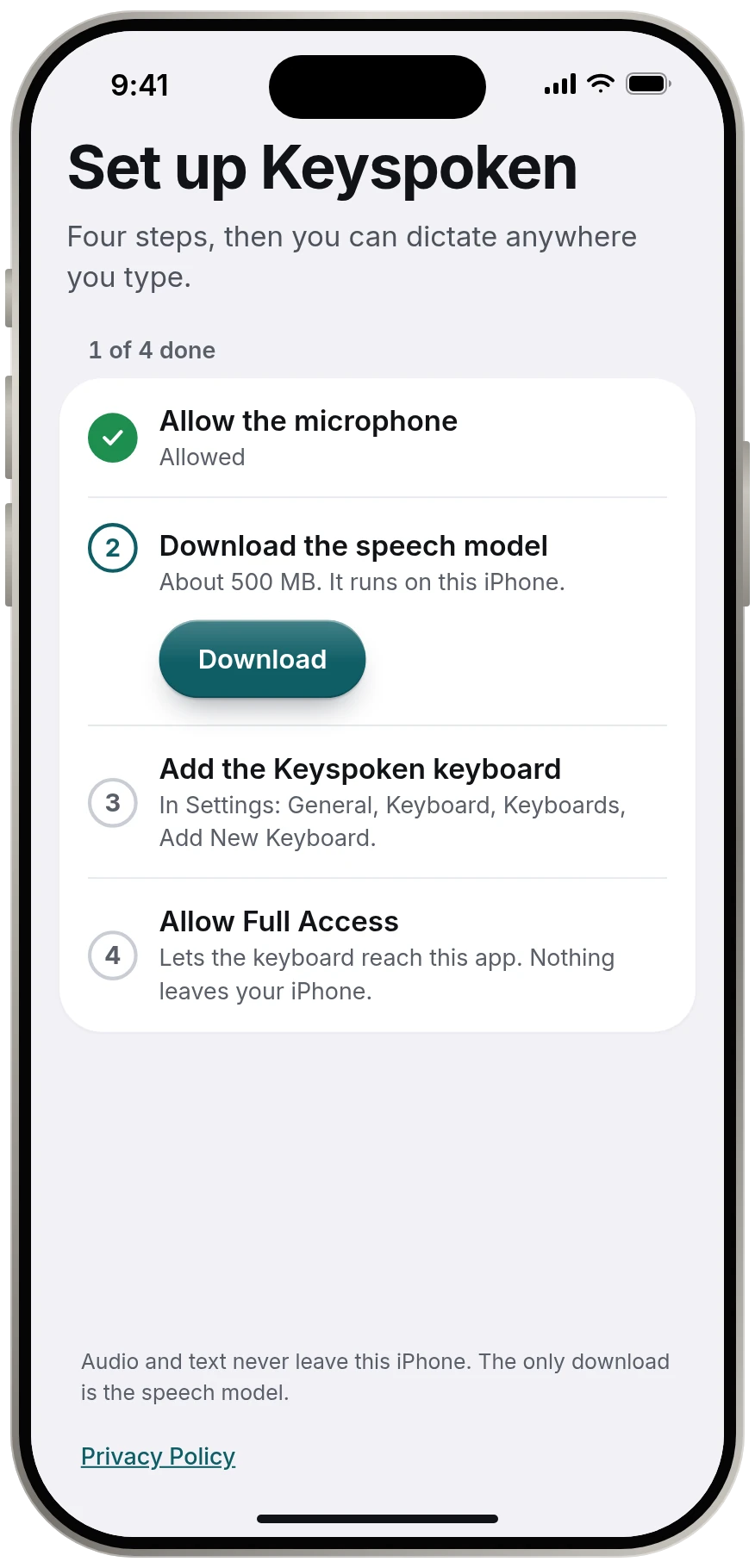
- Add Keyspoken in Settings, General, Keyboard, Keyboards, and allow Full Access.
- In any app, touch and hold the globe key and choose Keyspoken.
- Talk. It is already listening.
- Pause. Your words are inserted and your own keyboard returns.
Voice commands in the built-in dictation
Apple's dictation adds punctuation by itself in supported languages. You can also say what you want.
- Say "new line" or "new paragraph" to break the text.
- Say "select" or "delete" followed by the phrase you want to change.
- Say "undo" or "redo" if you change your mind.
- To spell a word, say it and then the letters.
- To stop, tap the microphone, say "Stop dictation", or stay silent for 30 seconds.
- To turn off automatic punctuation, go to Settings, General, Keyboard and turn off Auto-Punctuation.
Dictating a text message
Open the conversation and tap the message field. Dictate with either method above, check the text, and send. In Keyspoken, the return key on the strip sends in apps where return sends.
Dictating an email
Tap the body of the email and dictate. Longer text works well by voice. With Keyspoken, saying "new paragraph" starts one in English.
In Notes, WhatsApp and other apps
Dictation works the same way anywhere a keyboard appears. iOS does not allow custom keyboards such as Keyspoken in password fields.
Changing the dictation language
For the built-in dictation, add the language under Settings, General, Keyboard, Keyboards, then switch with the globe key. In Keyspoken, download the Multilingual model in settings to dictate in 25 European languages.
Where these steps come from
Source for the built-in steps: Apple, iPhone User Guide, Dictate text on iPhone support.apple.com, read 13 November 2026.
If dictation is not working
- Check the microphone is allowed for the app, under Settings, Privacy and Security, Microphone.
- For built-in dictation, check Enable Dictation is on.
- For Keyspoken, check Full Access is on and the strip does not say "Mic asleep".
- Check another app, such as a call, is not using the microphone.
Questions
Can I dictate text messages on iPhone?
Yes. Tap the message field, then use the microphone key for built-in dictation, or switch to Keyspoken with the globe key and talk.
How do I dictate an email?
Tap the body of the email, start dictation, and speak. Read it through before sending, as any speech recognition can mishear.
Why is my iPhone dictation not working?
The usual causes are the microphone permission being off, Enable Dictation being off, or another app using the microphone. For Keyspoken, also check that Full Access is on.
Keep reading
- All guidesEvery guide to dictating on iPhone.
- Dictation app for iPhoneA dictation app for iPhone that leaves your keyboard alone
- Voice to text keyboardA voice keyboard with no keys to learn
- Offline dictationOffline dictation that works in airplane mode
- Private dictationPrivate dictation. Your voice stays on your iPhone.